Create Thumbnail Menu Background and Mask in GIMP
This topic shows how to use GIMP to create a background and a mask for a thumbnail DVD menu.
Project Directory
You need a directory to store the source images and the DVDBuilder project. This can be anywhere on your machine. For example create C:\TitleMenuDVD directory. We will refer to that as the DVD Project Directory.
Create Menu Background
We will create a GIMP project that has all required layers that are needed for the DVD menu. At the time of writing the latest available GIMP version was 2.8.14.
Background Image
Download the image AquaBlue.jpg from the Internet Archive to the DVD Project Directory.
The size of AquaBlue.jpg is 1600 x 1024 which is roughly 16:10 width to height ratio. That must be cropped to 720 x 480 for the NTSC system. We can do the dropping in GIMP.
Open the
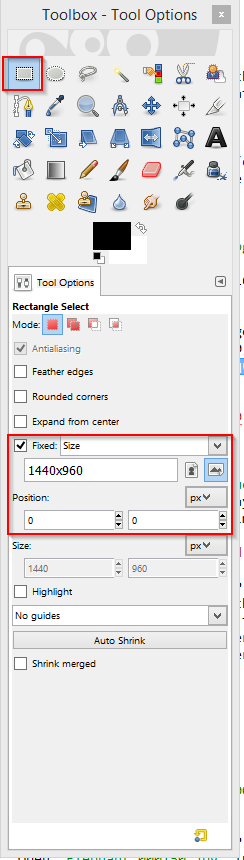
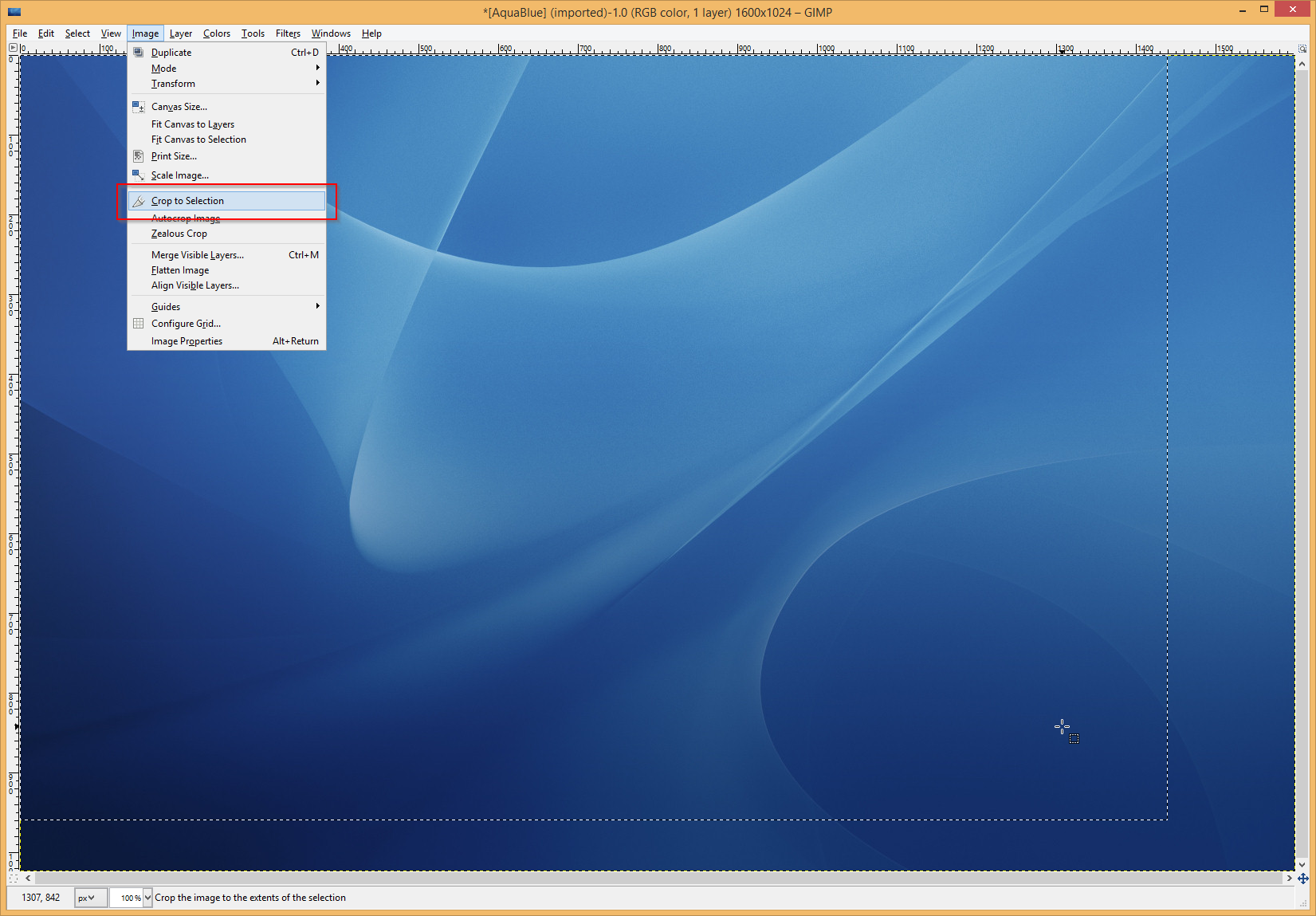
AquaBlue.jpgimage in GIMP 2. GIMP will create a new project for you.Crop it to Width x Height: 1440 x 960, i.e. double the NTSC resolution of 720 x 480
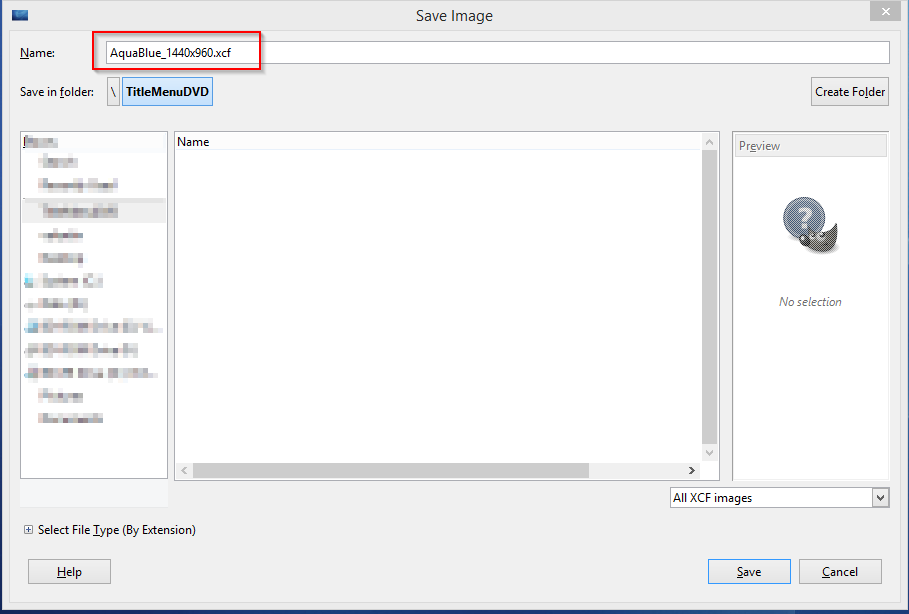
Save the GIMP project as
AquaBlue_1440x960.xcf.
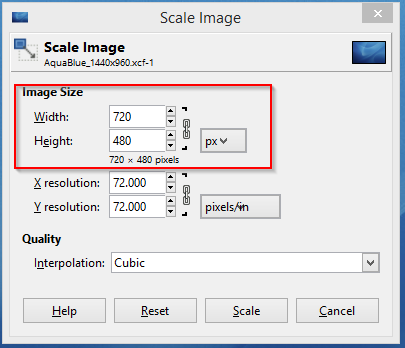
Scale Background to 720×480 (NTSC)
Open
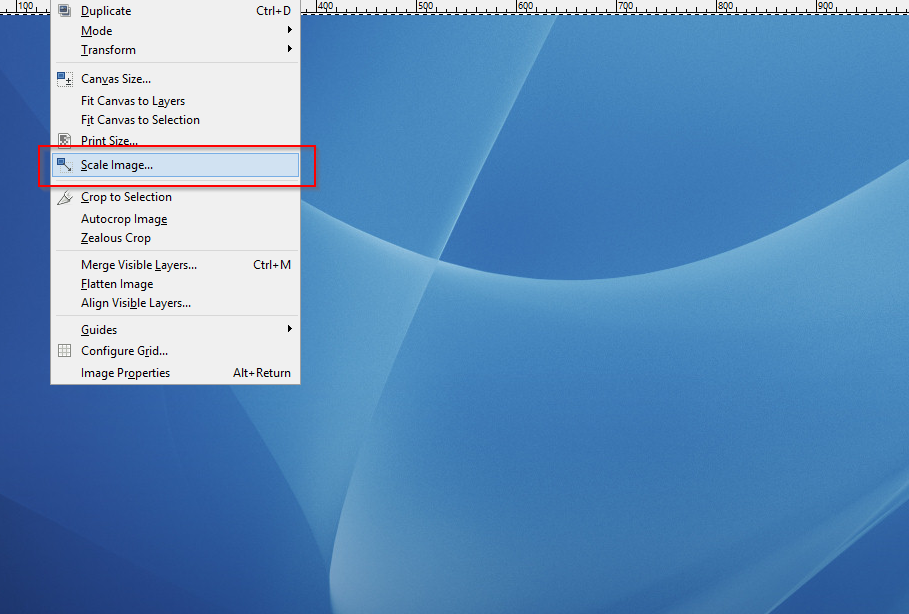
AquaBlue_1440x960.xcfin GIMPScale the image to 720×480
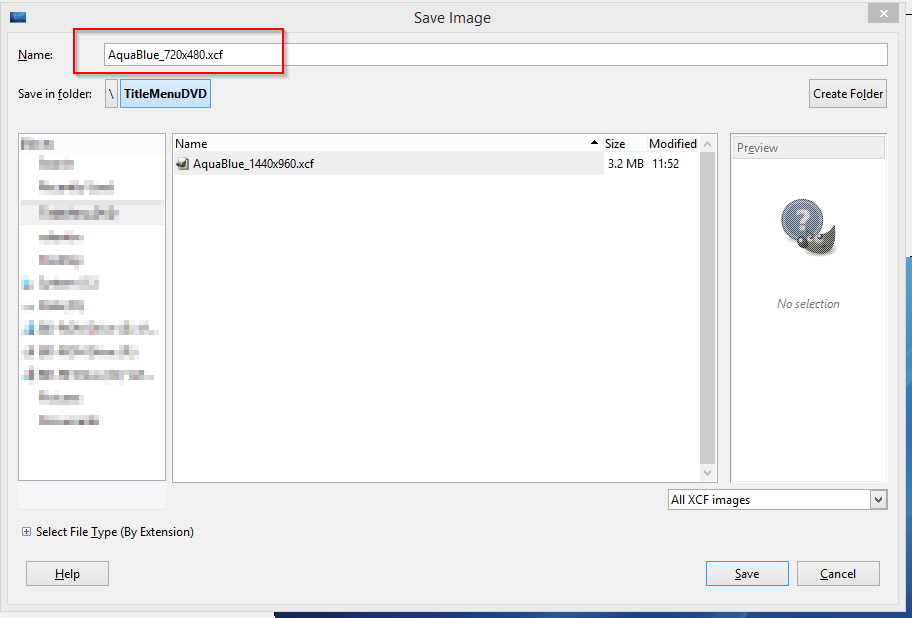
Save the project as
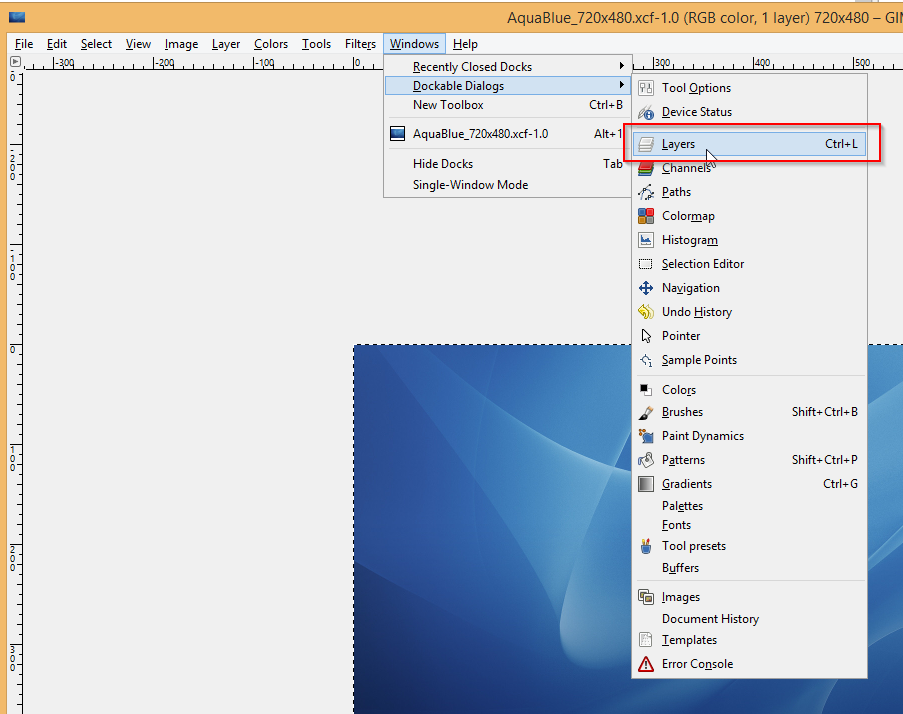
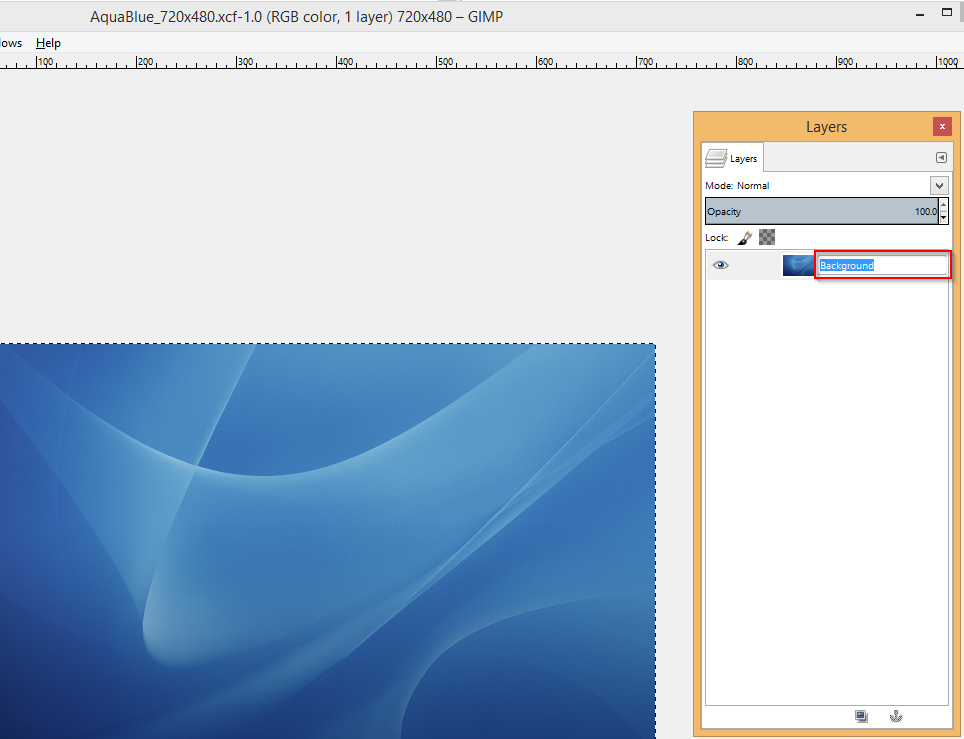
AquaBlue_720x480.xcfRename the
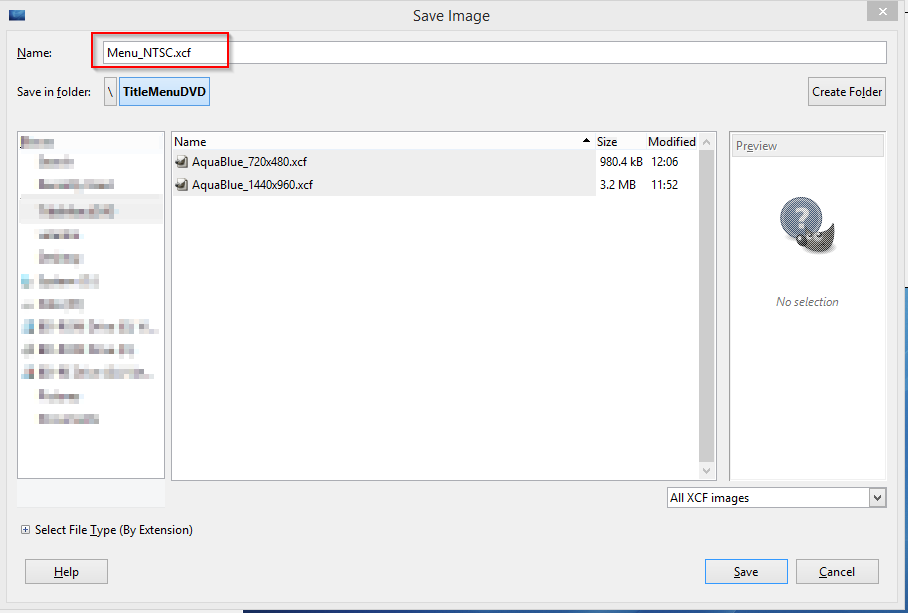
AquaBlue.jpglayer toBackgroundSave the project one more time as
Menu_NTSC.xcf
MenuBackground and Display Layer Groups
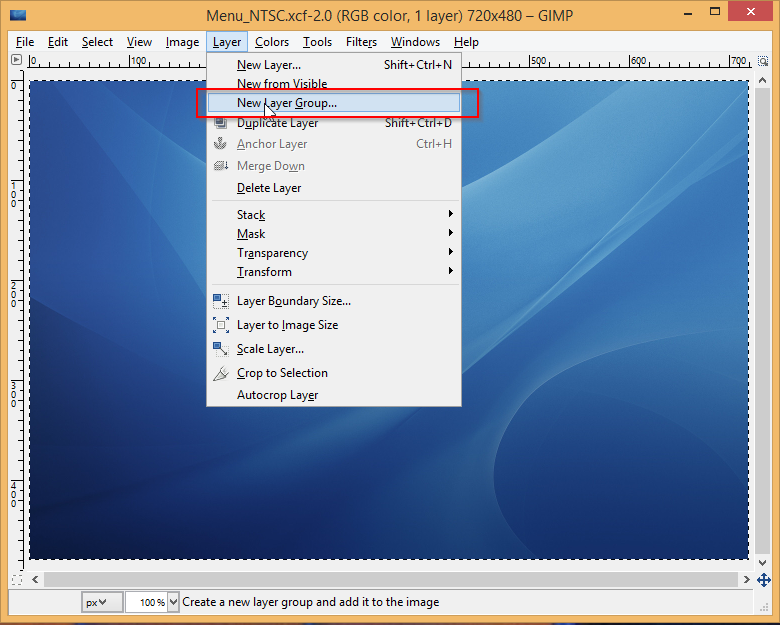
Open
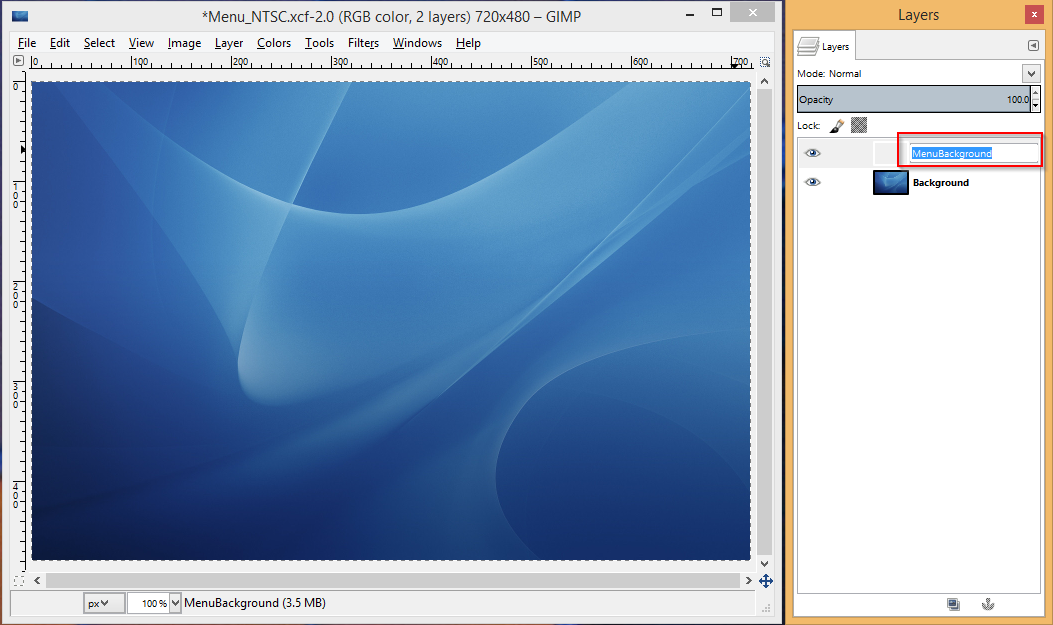
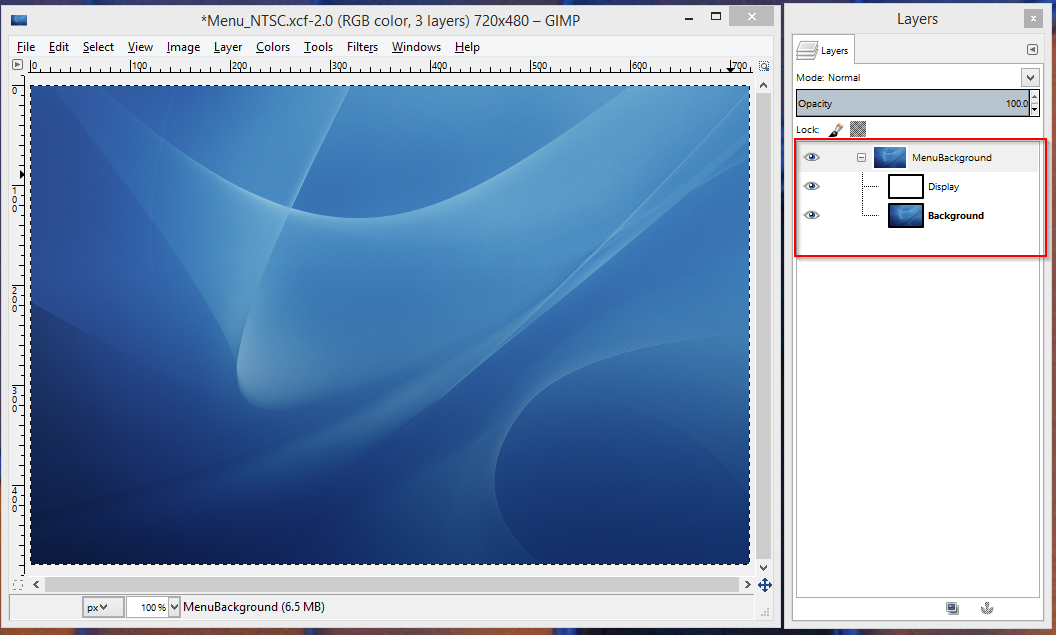
Menu_NTSC.xcfin GIMPCreate a new layer group with a name
MenuBackgroundIn the
MenuBackgroundlayer group, add a new later group with a nameDisplay.Move the
Backgroundlayer to theMenuBackgroundlayer group below theDisplaylayerSave
Menu_NTSC.xcf
Button Layers
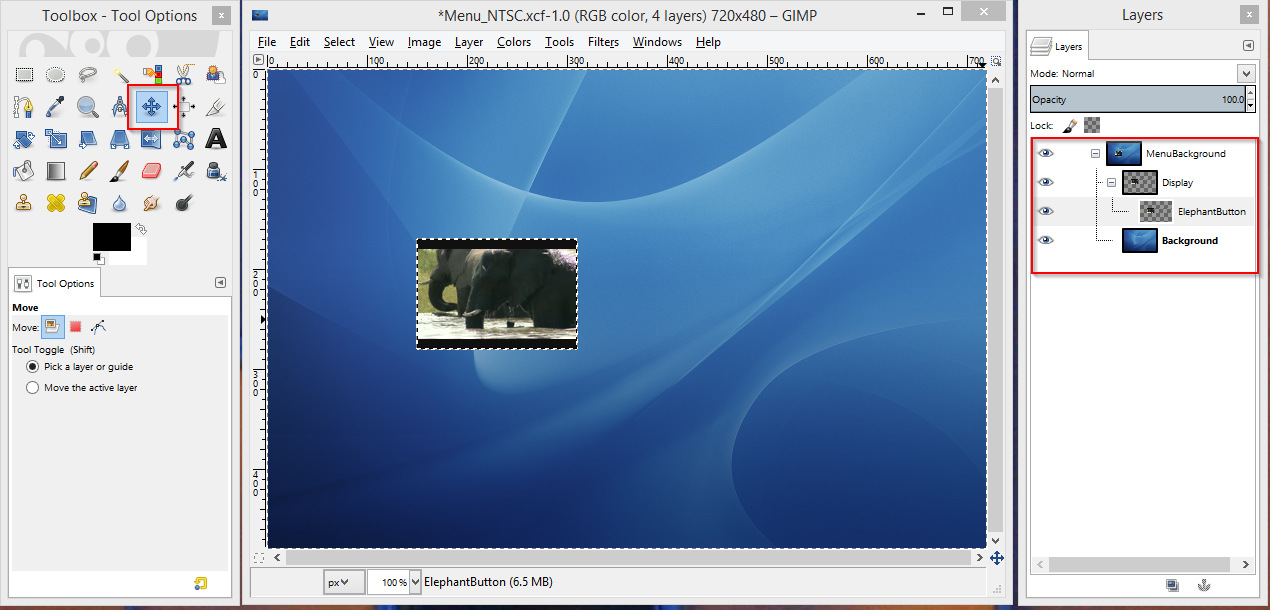
Elephant DVD button
Download the image Elephant_000150.jpg from the Internet Archive to the DVD Project Directory.
Open
Menu_NTSC.xcfin GIMPOpen
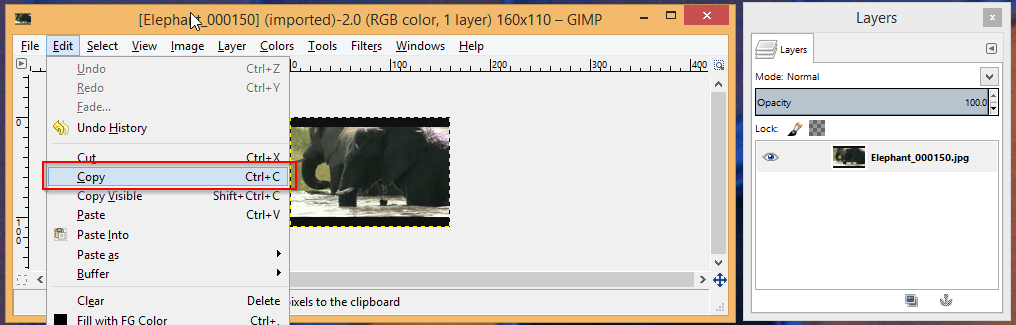
Elephant_000150.jpgin a separate GIMPSelect the whole image and copy to clipboard
Go back to
Menu_NTSC.xcfSelect the
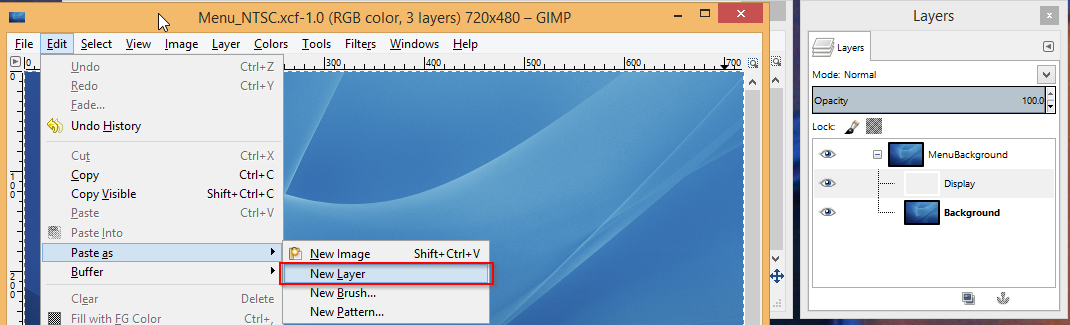
Displaylayer groupPaste the
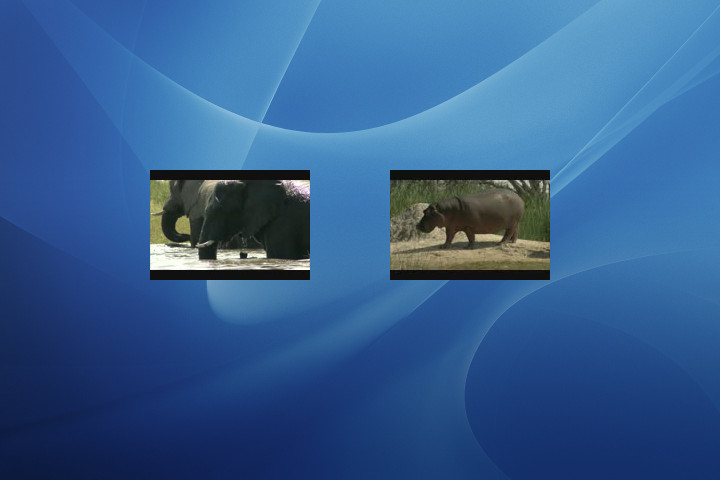
Elephant_000150.jpgas a new layer with a nameElephantButtonin theDisplaylayer groupMove the selection to position x=150, y=170
Save
Menu_NTSC.xcf
Hippo DVD button
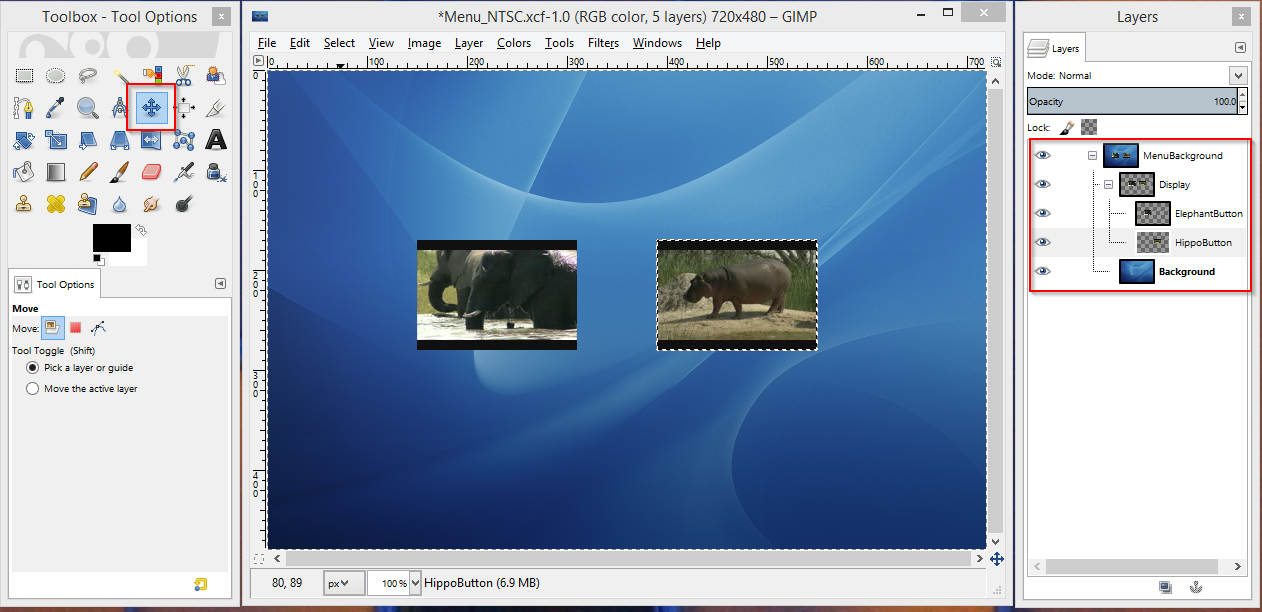
Download the image Hippo_000020.jpg from the Internet Archive to the DVD Project Directory.
Open
Menu_NTSC.xcfin GIMPOpen
Hippo_000020.jpgin a separate GIMPSelect the whole image and copy to clipboard
Go back to
Menu_NTSC.xcfSelect the
Displaylayer groupPaste the
Hippo_000020.jpgas a new layer with a nameHippoButtonin theDisplaylayer groupMove the selection to position x=390, y=170
Save
Menu_NTSC.xcf
Export Background As JPEG
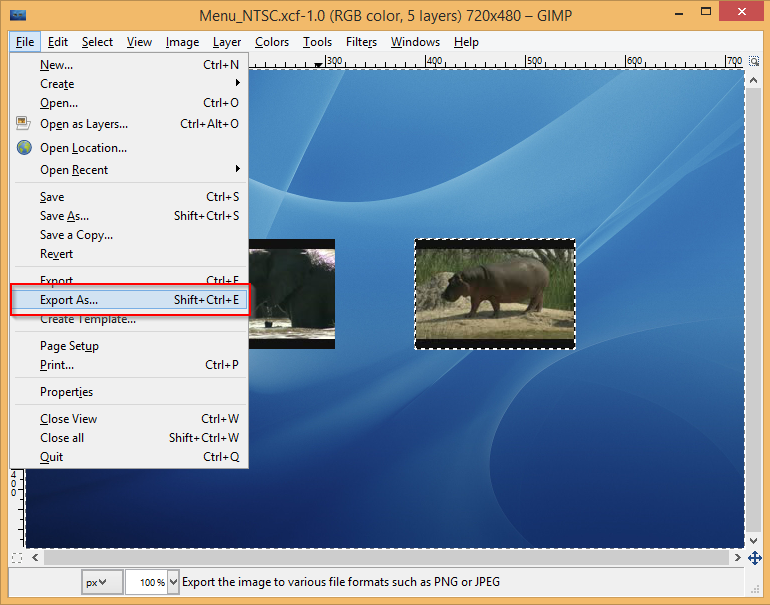
Open
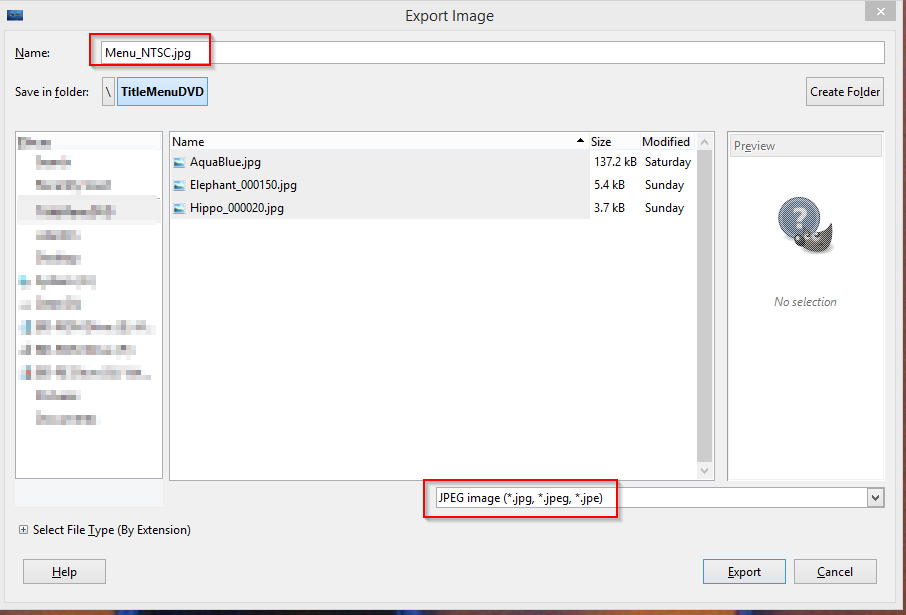
Menu_NTSC.xcfin GIMPExport as
Menu_NTSC.jpg
Here is the final background image:
Create Menu Mask
MenuMask, DisplayPattern, SelectionPattern, ActionPattern, and BackgroundPattern Layers
Open
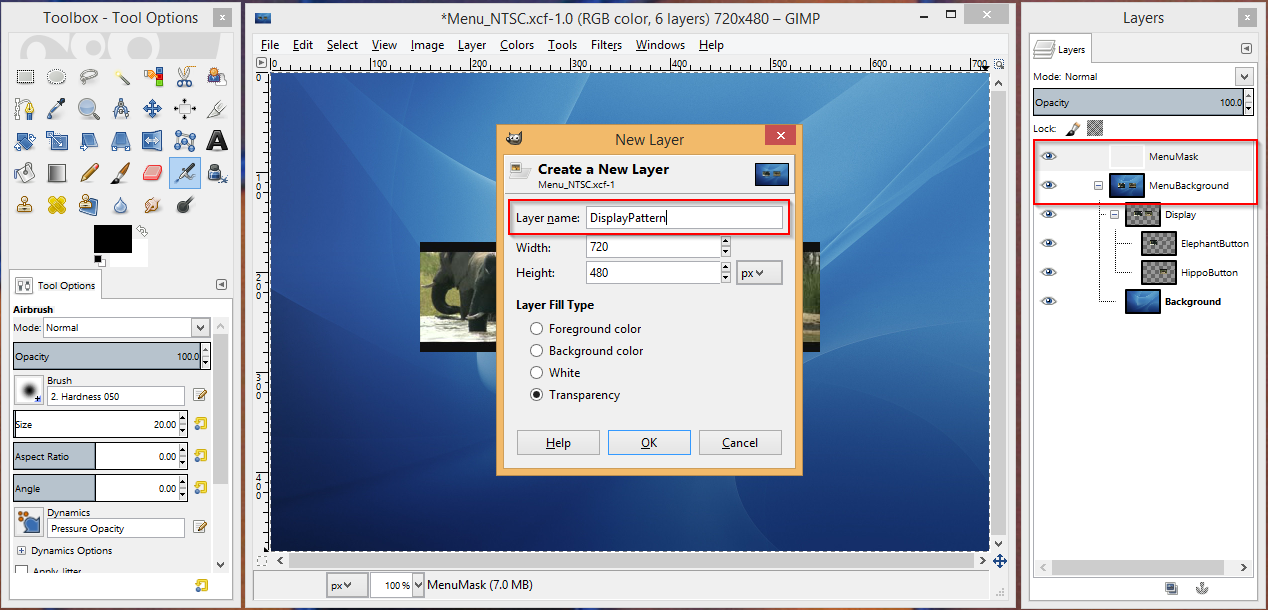
Menu_NTSC.xcfin GIMPCreate a new layer group with a name
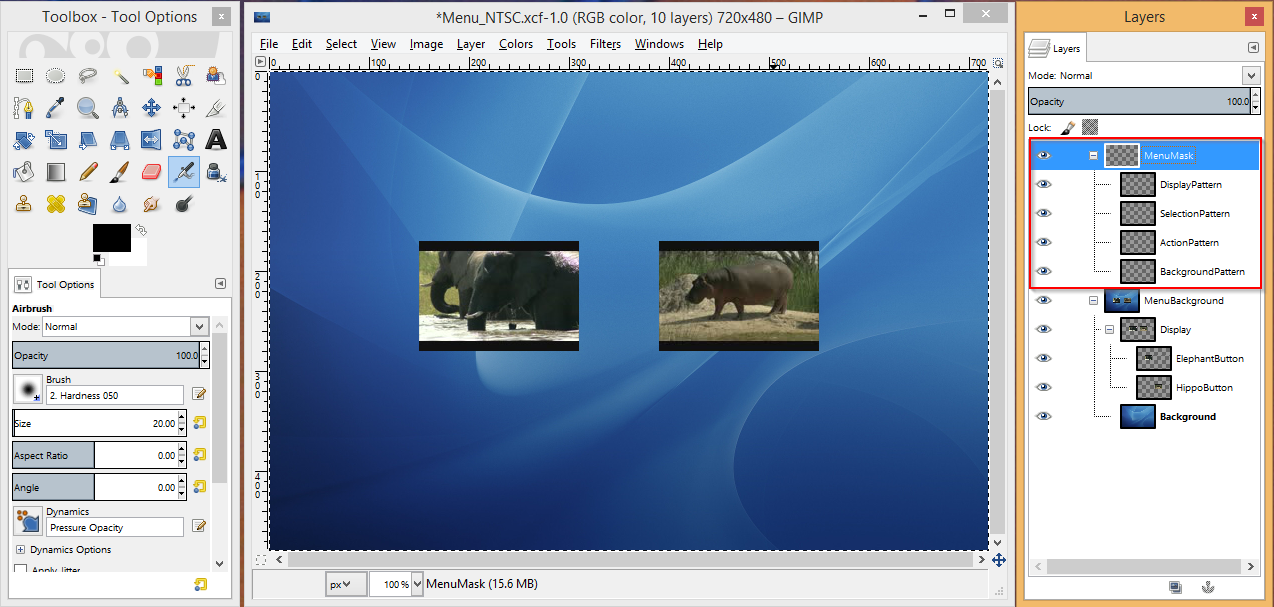
MenuMask. Place that above the existingMenuBackgroundlayer group.In the
MenuMasklayer group, add the following layers:DisplayPattern,SelectionPattern,ActionPattern,BackgroundPatternIn the
MenuMasklayer group, rearrange the layers from top to bottom in this order:DisplayPattern,SelectionPattern,ActionPattern,BackgroundPatternSave
Menu_NTSC.xcf
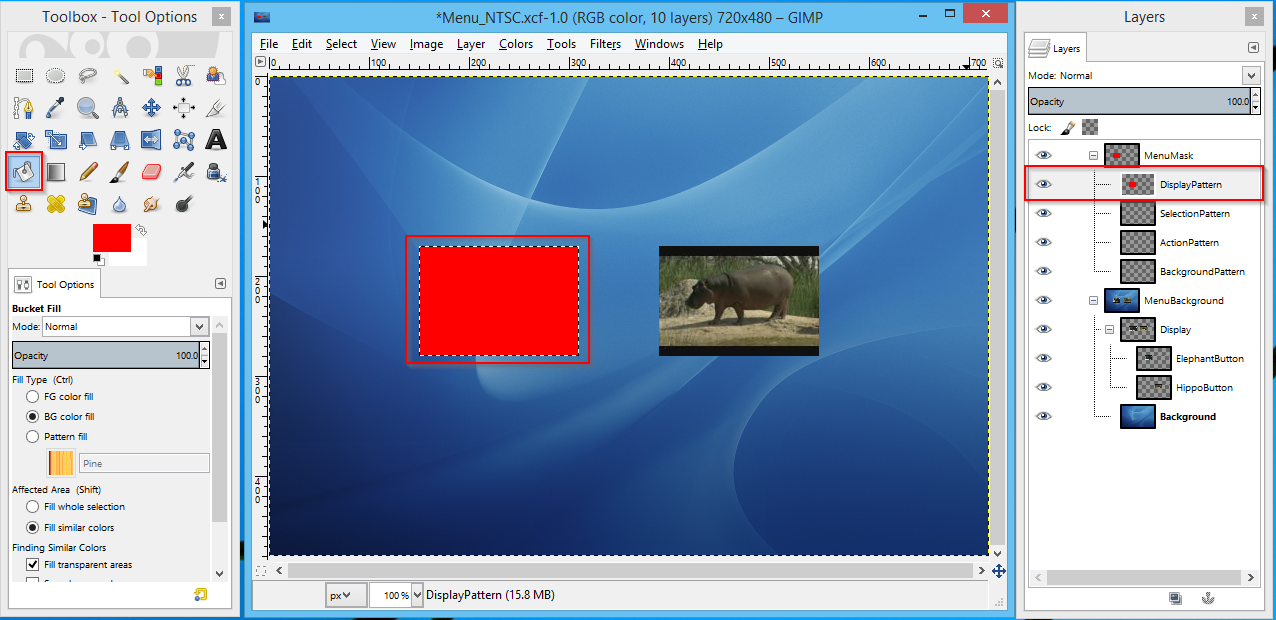
Display Pattern
Open
Menu_NTSC.xcfin GIMPSelect the
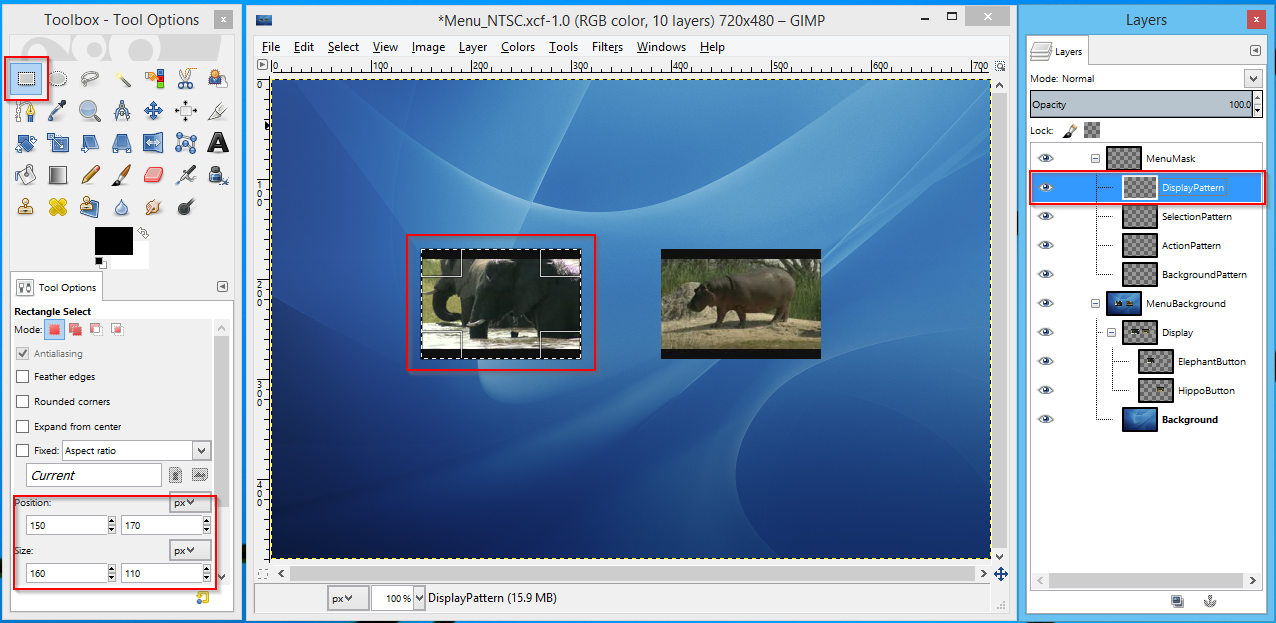
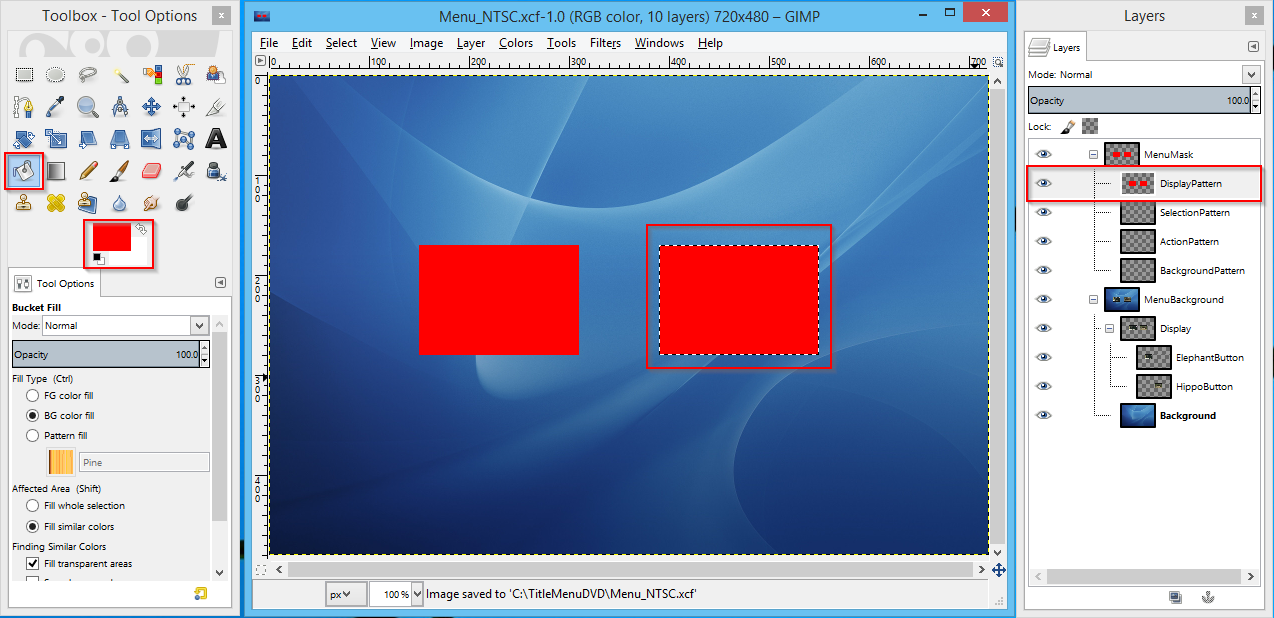
DisplayPatternlayerUsing the Selection tool, select a rectangular area at position 150 x 170, and size 160 x 110.
Using the Fill tool, fill the selection with red (HTML Notation: ff0000) color.
Repeat steps 3. and 4. but this time select a rectangular area at position 390 x 170, and size 160 x 110.
Save
Menu_NTSC.xcf
Selection Pattern
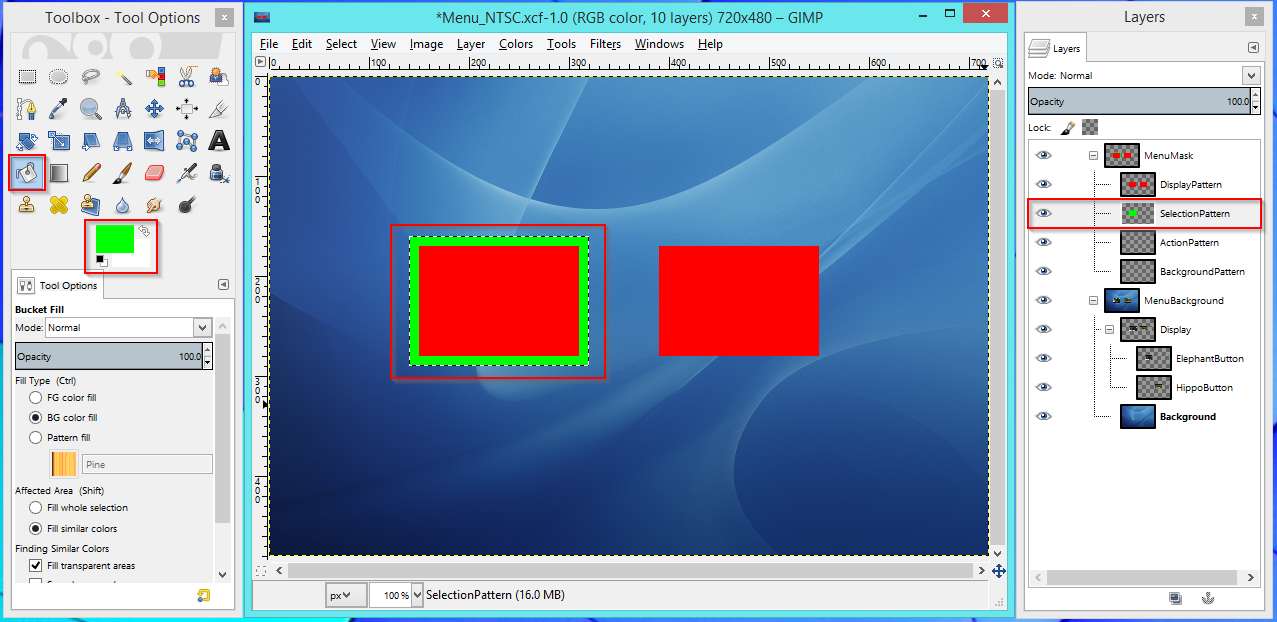
Open
Menu_NTSC.xcfin GIMPSelect the
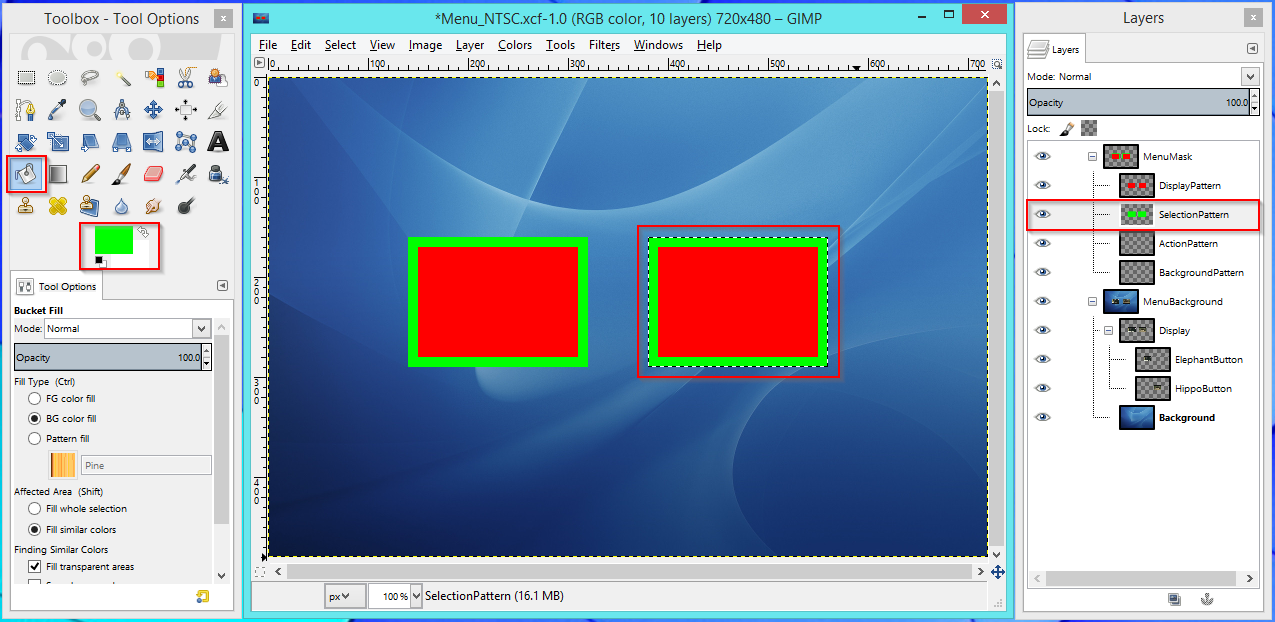
SelectionPatternlayerUsing the Selection tool, select a rectangular area at position 140 x 160, and size 180 x 130.
Using the Fill tool, fill the selection with green (HTML Notation: 00ff00) color.
Repeat steps 3. and 4. but this time select a rectangular area at position 380 x 160, and size 180 x 130.
Save
Menu_NTSC.xcf
Action Pattern
Open
Menu_NTSC.xcfin GIMPSelect the
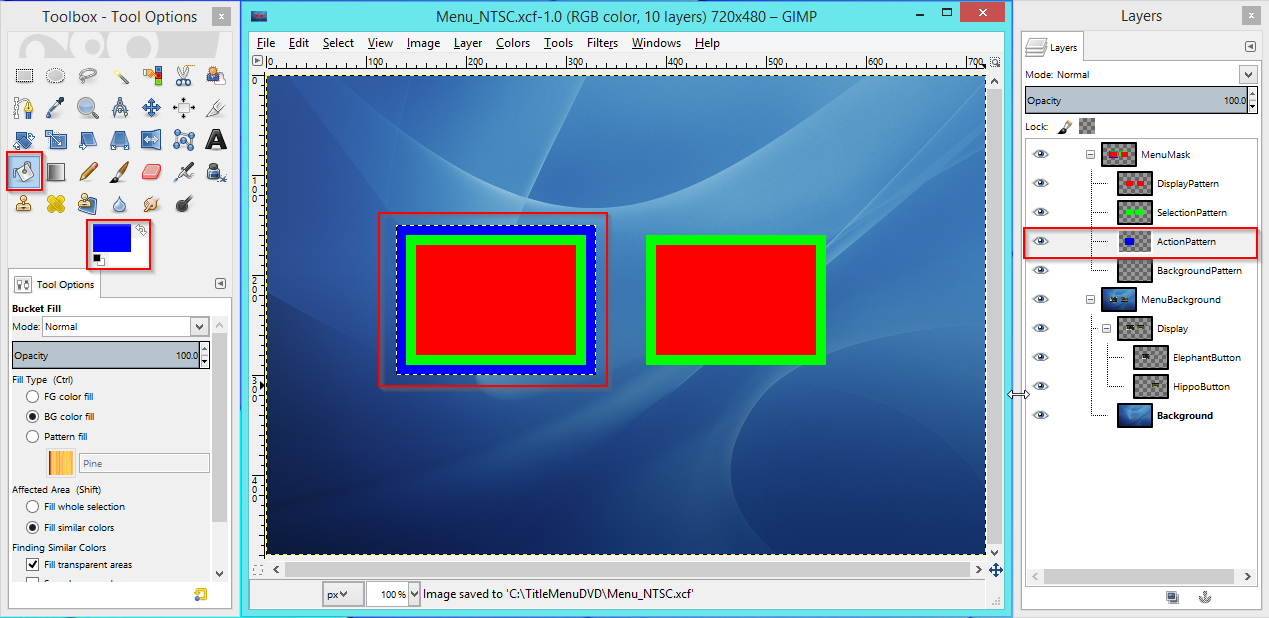
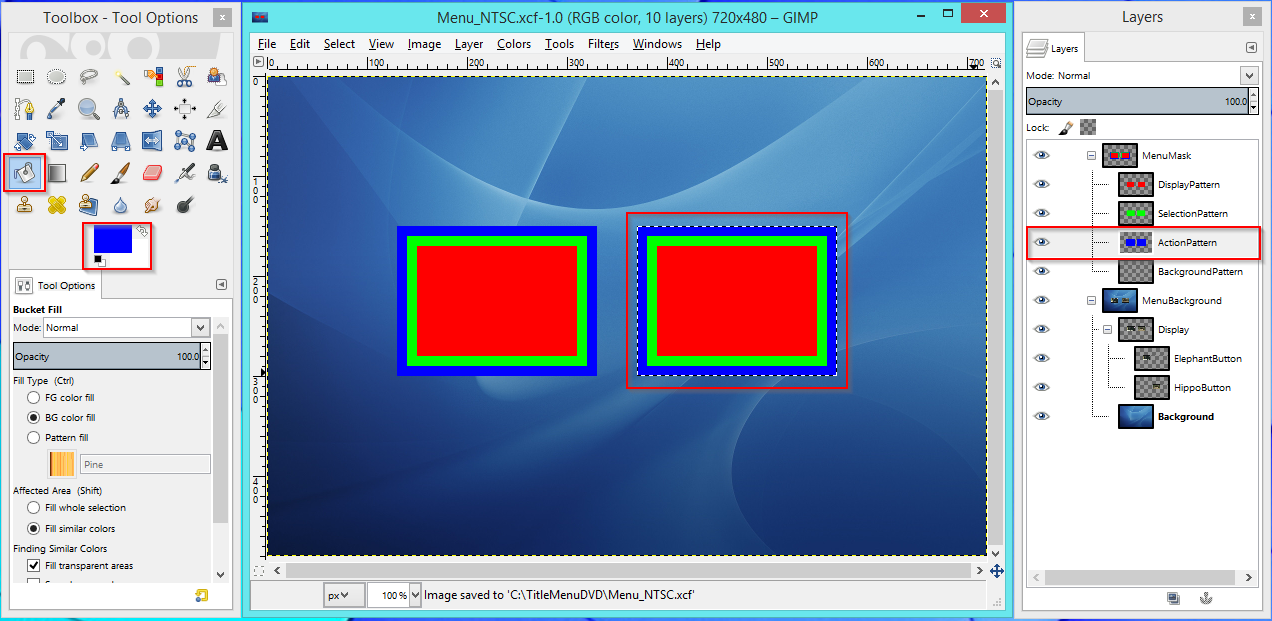
ActionPatternlayerUsing the Selection tool, select a rectangular area at position 130 x 150, and size 200 x 150.
Using the Fill tool, fill the selection with blue (HTML Notation: 0000ff) color.
Repeat steps 3. and 4. but this time select a rectangular area at position 370 x 150, and size 200 x 150.
Save
Menu_NTSC.xcf
Background Pattern
Open
Menu_NTSC.xcfin GIMPSelect the
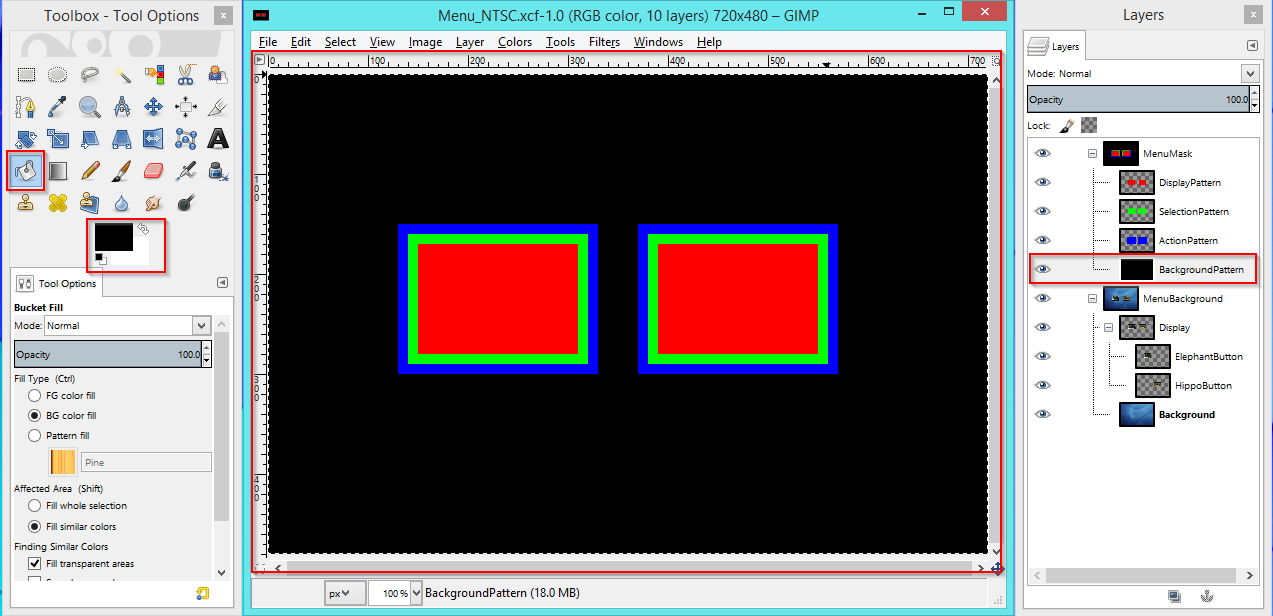
BackgroundPatternlayerUsing the
Filltool, paint the whole layer in blackSave
Menu_NTSC.xcf
Export Mask As Windows Bitmap
Open
Menu_NTSC.xcfin GIMPSelect the
MenuMasklayer groupDeselect the
MenuBackgroundlayer groupExport as
Menu_NTSC_Mask.bmp. In the advanced export options select the 24-bit option.
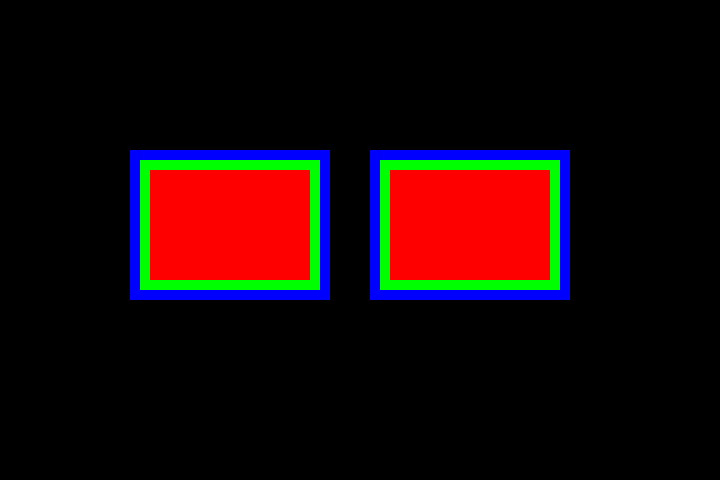
Here is the final mask image: